24 November 2026
What to check when an AI kids video looks odd
Presented by @thestorysprout
Why an AI-generated scene can feel off
AI video tools have made it easy for parents and educators to create short, cartoon-style stories and educational clips for children. But the output is not always perfect. Sometimes a character's face shifts between frames, a background object flickers, or the motion looks unnatural. These quirks happen because the AI builds each video frame by frame, and the model may lose consistency across a sequence. Knowing what to inspect when an odd scene appears helps you decide whether to re-generate, adjust your prompt, or fix something in the raw material.
Movement that doesn't flow
Kids notice when motion looks jerky or disconnected. A character might walk forward in one frame and slide sideways in the next, or their arm might jump to a new position without a smooth transition. This often comes from a mismatch between the AI's understanding of the action and the number of frames it generates. If you see a sudden snap in a character's pose, check whether your original description of the movement was specific enough. Instead of "the rabbit runs," try "the rabbit hops forward with both feet, then lands." The extra detail gives the AI a clearer sequence to follow.
Another common issue is objects that appear and disappear between cuts. A toy that sits on a shelf in one shot might vanish in the next, then reappear two seconds later. This happens because the AI treats each scene as a separate creative step. To reduce this, keep the background description consistent in every part of your prompt. If the setting is a bedroom, mention the same items in the same order each time you describe it.
Faces and expressions that change
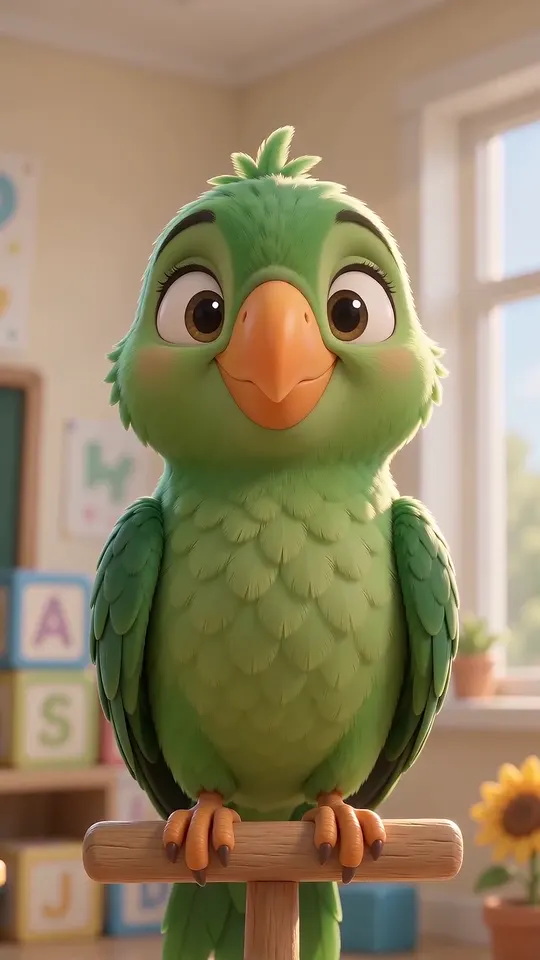
Character consistency is one of the hardest problems for AI video generators. A child character might have brown eyes in one frame and blue in the next, or their smile might warp into a different expression entirely. For young viewers, this can be distracting and break the story's spell. When you inspect a video, pause at several points and look at the same character's face. Does the hairline stay the same? Are the eyes roughly the same size and colour? If the face changes shape, the AI may be confusing two similar prompts or blending features from different training examples.
One way to improve consistency is to include a brief character description at the start of your video script, then repeat it in each scene description. For example, "a five-year-old girl with curly red hair and round glasses" used every time helps the model lock onto that visual identity. Tools like fluxnote ai let you embed these descriptions directly into the video generation process, so the character stays recognisable from the first frame to the last.
Background elements that flicker or morph
Backgrounds in AI-generated videos often suffer from flickering textures, especially on grass, water, or patterned walls. A tree might rustle unnaturally, or a rug might change colour between frames. This happens because the AI is generating each frame independently and has no memory of the previous frame's pixels. The fix is to reduce the amount of detail in the background. A simpler backdrop gives the AI less room to invent inconsistencies. Solid colours, blurred backgrounds, or cartoon-style settings with limited textures work best.
If the video still flickers, check whether your prompt asks for too many distinct objects. A scene with a playground, three children, a dog, a slide, and a swing set in the same frame is asking the AI to track many visual elements at once. Narrow the focus to one or two main subjects and keep the background plain. You can always add a second shot for the other details.
Audio and captions that drift out of sync
When an AI video generator adds narration or captions, the timing can slip. A sentence might start before the character's lips move, or the caption might stay on screen after the speaker has finished. For educational videos and nursery rhymes, this misalignment confuses children who are learning to read along with the words. Inspect the video with the sound on and watch the captions. Do the words appear at the same moment they are spoken? If not, the AI may have generated the audio and video separately and then stitched them together with a fixed timing that does not match the actual speech rhythm.
Some tools let you adjust the caption timing manually, but many do not. If your video has persistent sync issues, try shortening each sentence in the script. Shorter lines give the AI less room to drift. A line like "The little bird sang a song" might work better as "The bird sang. A song." broken into two caption blocks. This keeps each piece short enough for the AI to align properly.

Strange physics and impossible objects
AI models sometimes produce objects that defy basic physics. A cup might float in mid-air, a character's arm might bend backward, or a ball might hover instead of falling. These errors come from the model's incomplete understanding of how real objects behave. When you see an impossible scene, ask yourself whether the prompt described a physical action clearly. For example, instead of "a girl throws a ball," try "a girl throws a red ball upward. The ball arcs and falls into a basket." The extra words about the arc and fall guide the AI toward a natural trajectory.
If the problem persists, consider whether the scene contains an action the AI rarely sees in its training data. Unusual motions like a character spinning very fast or an object changing size quickly can confuse the model. Stick to everyday actions that the AI has likely seen many examples of. For fantasy stories, describe the magic in concrete visual terms: "a glowing orb floats slowly to the ceiling" instead of "magic happens."
Repetitive or looping motion
Sometimes an AI video will repeat the same two-second action over and over, like a character waving endlessly or a dog wagging its tail in a loop. This is a sign that the model ran out of creative direction and defaulted to a short cycle. Check the length of your original video setting. If you asked for a ten-second clip but described only one action, the AI may stretch that action across the full duration. Break the action into a sequence of steps. For a nursery rhyme about a clock, you could specify: "The clock ticks. The pendulum swings. The clock chimes." Each step fills a few seconds and prevents the loop.
For longer videos, consider using a tool like fluxnote ai that allows multi-scene storytelling. Instead of one long clip, you can generate several short scenes and join them. This gives the AI a fresh prompt for each segment and avoids the repetitive motion that comes from trying to fill a long timeframe with a single idea.
How to decide if a video is usable
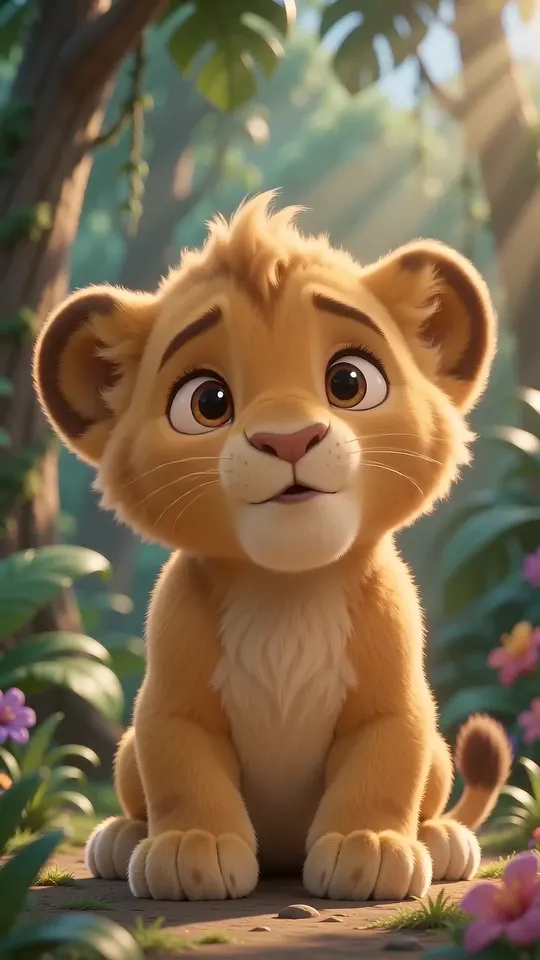
Not every odd frame means the video is broken. For young children, a slight flicker in the background or a minor expression change may go unnoticed. The key is to decide whether the oddity distracts from the story or the learning goal. If the character's face changes halfway through, that is likely a problem. If the leaves on a tree shimmer a little, it might be fine. Test the video with the child or class you made it for and watch for their reaction. If they lose interest at the same point every time, that is the spot to fix.
When you do need to re-generate, adjust only one thing at a time. Change the description of the odd part, not the whole script. Keep the rest of the prompt identical so you can compare the results fairly. Over time, you will learn which kinds of descriptions produce the cleanest videos for your favourite style of kids content.
Fluxnote on social media
 Twitter
 LinkedIn
 Facebook
 Instagram
 YouTube
 Discord